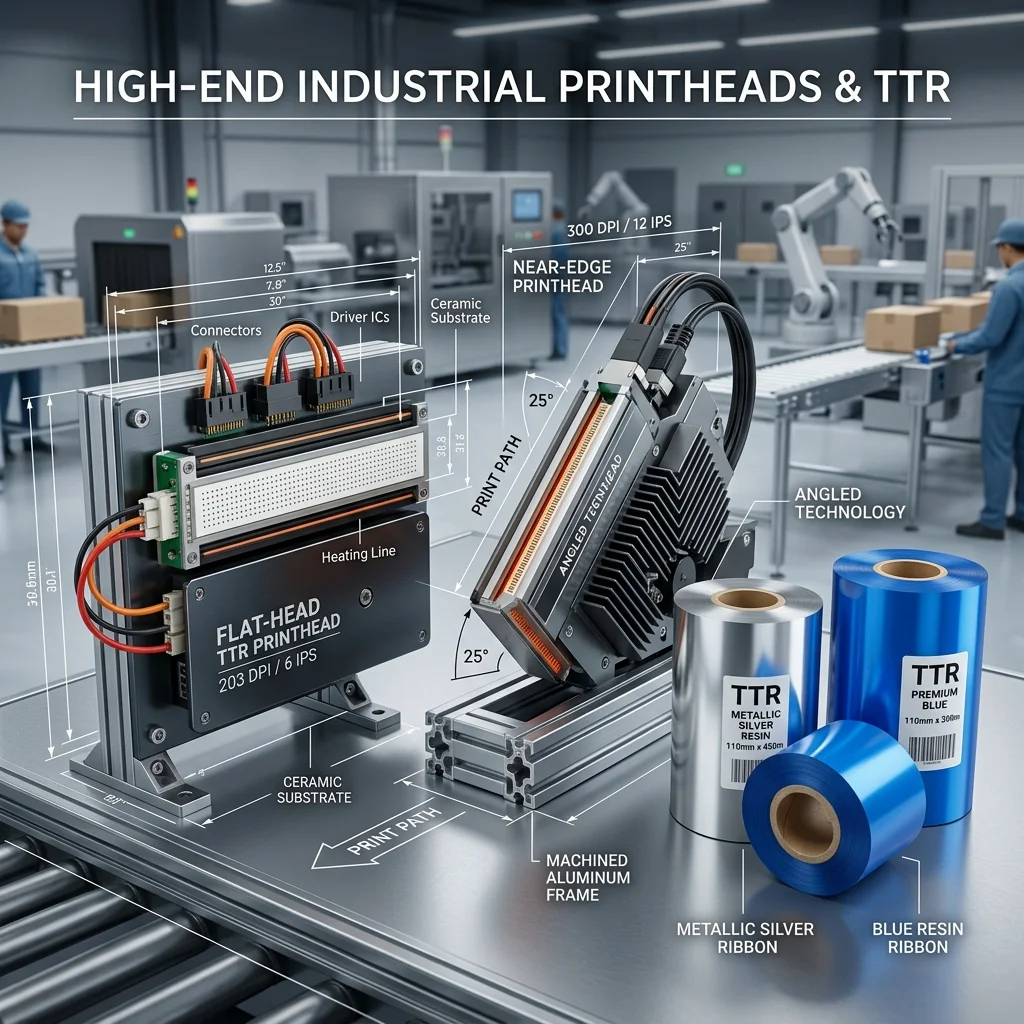
Ribbon selection for a Zebra printer starts with the exact model and its documentation. Confirm whether the unit is configured for thermal transfer, then record printhead type, ribbon width and length, core, ink side, and wind direction. Do not infer these details from brand name alone.
Match the Ribbon to the Label
- Evaluate the current wax series for compatible paper labels.
- Evaluate the wax-resin series when compatible paper or synthetic labels need greater handling durability.
- Evaluate the resin series for compatible synthetic labels and demanding application tests.
Ribbon or Media Detection Errors
Check that ribbon and labels follow the loading diagram for the exact printer. Inspect the sensor path for scraps or adhesive, confirm the selected media mode, and perform the calibration procedure in the printer manual. If the error remains, test with known-compatible supplies before replacing parts.
Wrinkles or Diagonal Voids
Verify that the ribbon is wider than the label liner where the printer requires it, the roll is centered, and the guides and pressure controls are set evenly. Inspect the platen, printhead, supply roll, take-up roll, and ribbon edges. Change only one mechanical adjustment at a time.
Weak Transfer or Smudging
First confirm label-and-ribbon compatibility. Clean the printhead using the material and procedure specified by Zebra. Start from a conservative printer setting, then adjust energy and speed incrementally while checking barcode quality and adhesion. More heat is not a substitute for an incompatible ribbon.